Screen Sharing: The Ultimate 2026 Guide to Share Your Screen Safely and Effectively

You've probably already used screen sharing to present slide decks, demonstrate new software, or help a colleague troubleshoot a technical glitch. But sharing the wrong monitor, triggering unexpected pop-up notifications, or presenting without data masking can expose sensitive customer databases, personal messages, and passwords. In this guide, you'll discover how screen sharing works technically, step-by-step instructions for every device, tool comparisons, and essential privacy practices for 2026.
Key Takeaways
- •Real-Time Broadcast: Screen sharing encodes and streams your computer, phone, application window, or browser tab to live participants with minimal latency.
- •Targeted Isolation is Safer: Sharing a single browser tab or application window drastically limits accidental exposure of background notifications and personal tabs compared to full-desktop broadcasts.
- •Measurable Productivity Gains: Industry data reveals visual screen collaboration reduces meeting durations by up to 25% compared to audio-only discussions.
- •Distinct Collaboration Modalities: Screen sharing differs fundamentally from local screen mirroring, remote desktop administration, and asynchronous screen recordings.
- •Automated In-Session Privacy: Combining Do Not Disturb modes with real-time browser blurring from AI BlurWeb prevents accidental leaks of API keys, emails, and financial data.
What Is Screen Sharing?
Screen sharing is the process of broadcasting a computer, smartphone, application window, or browser tab to one or more participants in real time. This live video stream allows remote viewers to see exactly what the host sees as interactions unfold, establishing synchronized context for collaborative work, technical troubleshooting, sales demos, and virtual training.
At a technical level, screen-sharing software captures pixel data directly from the device's display compositor, compresses the video stream using optimized codecs (such as VP8, VP9, or H.264 via WebRTC), and delivers the packets across the internet with low latency.
How Screen Sharing Works Step by Step
- Source Selection: The host chooses whether to stream the entire desktop, a discrete application window, or an individual browser tab.
- Capture & Compression: The client engine captures screen buffers and applies lossy video compression to minimize bandwidth consumption.
- Packet Transmission: The compressed stream travels across secure WebRTC peer-to-peer tunnels or encrypted media server relays.
- Decoding & Reassembly: The recipient's app decodes the media frames and renders the live feed with sub-second latency.
- Permission Enforcement: Host controls determine whether viewers can view only, annotate with digital pointers, request remote mouse/keyboard control, or record the session.
For example, when you present a Chrome tab in Google Meet, the browser isolates and captures only that specific tab's DOM and canvas pixels without exposing your desktop taskbar, bookmarks bar, or background messaging windows.
Screen Sharing vs. Screen Mirroring vs. Remote Desktop vs. Screen Recording
It is critical to distinguish screen sharing from related visual collaboration tools:
Live, internet-based multi-user visual broadcast ideal for meetings, webinars, and interactive presentations.
Local wireless or cable duplication (AirPlay, Miracast, HDMI) to nearby projectors or TVs without internet transmission.
Bidirectional system control granting an external IT administrator full mouse and keyboard operation over a host machine.
Capturing on-screen interactions into a static MP4 video file for asynchronous documentation and tutorials. Learn more in our screen recording guide.
Why Screen Sharing Matters in Modern Workplaces
Screen sharing is the foundation of distributed collaboration. Rather than relying on confusing verbal explanations or exchanging static email screenshots, teams review live sources together.
According to industry surveys, over 68% of knowledge workers now collaborate in remote or hybrid setups, and visual screen sharing reduces meeting times by up to 25% compared to audio-only discussions. Whether reviewing Figma design prototypes, debugging codebase errors, or walking clients through financial dashboards, live visual context eliminates ambiguity.
Founder's Perspective: Protecting Real-Time Presentations
When building AI BlurWeb, I realized that the single largest source of enterprise credential leaks isn't sophisticated hacking—it's accidental exposure during live screen shares. While physical screen privacy filters block shoulder surfers in cafes, they do nothing against Zoom call attendees. Automating browser-level data masking ensures your presentations remain productive without jeopardizing customer privacy.
What Are the Different Types of Screen Sharing?
Different collaborative scenarios require specific screen-sharing modalities:
1. Entire-Screen Sharing (Full Desktop)
Broadcasts every pixel on your physical monitor, including taskbars, wallpaper, and background applications. Ideal for multi-window workflows (e.g., coding in an IDE while testing in a browser), but presents high privacy risks if pop-up notifications appear.
2. Application- or Window-Specific Sharing
Restricts the broadcast to a single executable window (such as PowerPoint or Excel). Other programs opened over that window are rendered invisible to viewers, preventing inbox or Slack notifications from leaking.
3. Browser-Tab Sharing
Streams a single Chrome, Edge, or Firefox tab. This provides the highest privacy isolation for SaaS product demos because other tabs, bookmarks, and browser extensions are completely omitted from the feed.
4. Mobile Screen Sharing (iOS & Android)
Broadcasts smartphone or tablet displays using native ReplayKit (iOS) or MediaProjection API (Android) for mobile app testing and on-the-go customer assistance.
5. Remote-Support Sharing with Control
Combines video streaming with bidirectional input injection, enabling helpdesk technicians to configure operating systems and troubleshoot software directly.
How Do You Share Your Screen on a Computer?
Sharing your screen on Windows, Mac, or Linux follows a straightforward universal workflow across major video conferencing platforms:
Launch or Join Meeting
Connect to your video call in Zoom, Microsoft Teams, Google Meet, or Webex.
Click Share Screen
Select the prominent Share icon in the meeting toolbar (usually green or highlighted).
Choose Target Source
Pick between Entire Screen, Window, or Chrome/Browser Tab depending on privacy requirements.
Toggle Audio If Needed
Check "Share Sound" or "Include Computer Audio" if playing multimedia video clips.
Preview & Verify Boundary
Confirm the green/blue highlight box indicates the exact active sharing boundary.
Conclude Sharing Promptly
Click "Stop Share" immediately when your presentation segment finishes.
How Do You Share Your Screen on iPhone and Android?
Mobile operating systems require explicit broadcast authorization before streaming screen pixels:
- iPhone (iOS): Join your meeting in the mobile app → Tap the three-dot More menu → Tap Share Screen → Select Start Broadcast. Tap the red status bar clock when you wish to stop.
- Android: Open the meeting room → Tap Share → Select Screen → Acknowledge the system warning "Start recording or casting with [App]" → Tap Start Now.
Comparison: Top Screen-Sharing Software for 2026
Choosing the right platform depends on whether your organization focuses on enterprise meetings, helpdesk administration, or instant customer sales demos:
| Platform | Best Suited For | Free Tier | Starting Price | Key Standout Feature |
|---|---|---|---|---|
| Zoom | Webinars & Meetings | Yes (40 min) | $15.99/mo | High-framerate video optimization & annotation |
| Microsoft Teams | Office 365 Enterprises | Yes (60 min) | $6.00/user/mo | Seamless PowerPoint Live & Excel co-authoring |
| Google Meet | Google Workspace Teams | Yes (60 min) | $6.00/user/mo | Zero-download browser tab sharing |
| TeamViewer | Remote IT Helpdesk | Personal only | $15.00/mo | Unattended access & cross-OS remote control |
| Splashtop | Low-Latency Remote Access | Free Trial | $17.00/mo | 4K 60fps streaming for creative workstations |
| CrankWheel | Instant Sales Presentations | Yes (Freemium) | $15.00/mo | Instant SMS/link view on any client phone |
Source: Industry Benchmarks & Enterprise Software Pricing Guides, 2026.
Is Screen Sharing Safe? Essential Privacy Best Practices
Screen sharing is inherently safe from an encryption standpoint when using established platforms, but human error and unexpected visual pop-ups represent severe security vulnerabilities. Follow these essential safety protocols:
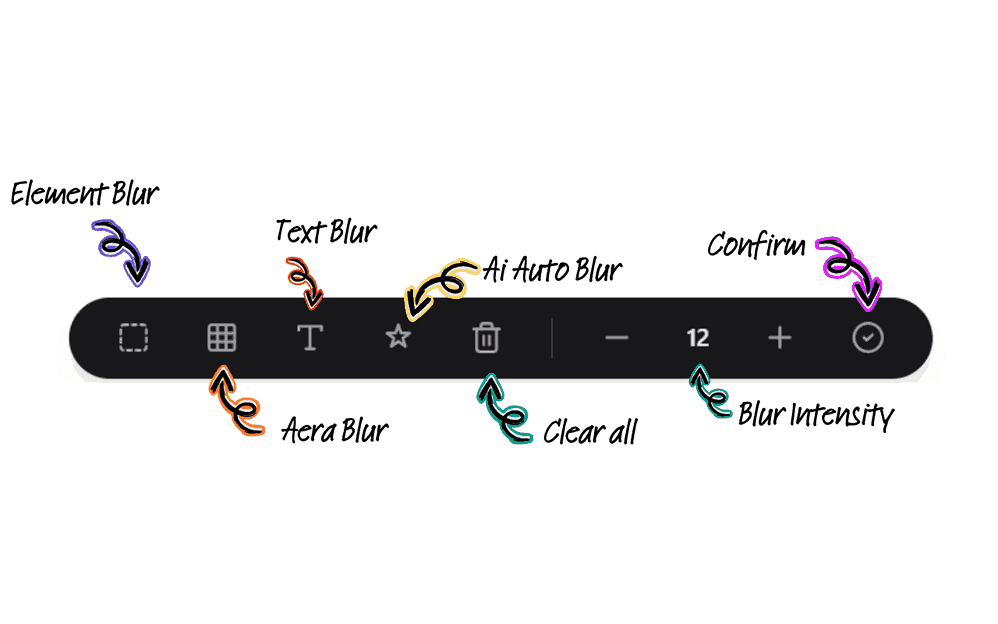
Conceal Sensitive Data Automatically with AI BlurWeb
Even when sharing a single browser tab, customer emails, API tokens, passwords, and billing information often remain exposed inside web dashboards.
AI BlurWeb runs 100% locally on your machine, leveraging lightweight on-device machine learning to detect and blur sensitive DOM elements in real time. Experience our interactive screen blur demo or view our lifetime plans.
Troubleshooting Common Screen-Sharing Problems
Encountering technical difficulties during a live broadcast is common. Here is how to resolve the top issues:
- Black Screen: On macOS, navigate to System Settings → Privacy & Security → Screen Recording and ensure your meeting app is checked. On Windows, check Settings → Privacy & Security → App permissions. If streaming video, disable hardware acceleration in your browser.
- No Audio Transmitted: Ensure "Share system audio" is enabled before clicking share, and verify that the correct virtual audio device is selected in meeting settings.
- Stutter and Video Lag: Switch from full-desktop sharing to a single window, reduce meeting video resolution, and close bandwidth-heavy torrent or cloud synchronization processes.
- Accidental Data Exposure: Stop screen sharing immediately. Close the exposed application, verify your screen state, and restart sharing with appropriate browser data masking enabled.
Conclusion
Screen sharing is an indispensable tool for modern remote work, product demonstrations, and technical support. By adopting a privacy-first workflow—choosing specific application windows, suppressing background notifications, and applying real-time AI browser blurring—you can present confidently without risking data leaks.
Take a few minutes before your next meeting to build your pre-session checklist, audit your browser tabs, and ensure your on-screen data is protected. For additional security guides, explore our tutorials on blurring sensitive screen areas, hardware privacy filter guides, and screen recording techniques.

Written & Reviewed by Deepak (Founder)
Founder & Solo Developer at AIBlurWeb
Deepak builds privacy-focused browser tools and writes about screen privacy, browser security, sensitive-data protection, screen sharing, and AI-powered privacy tools. Read more about the founder →
Disclaimer: This article was initially drafted with AI research assistance and thoroughly revised, fact-checked, and validated by human editors and security subject matter experts.