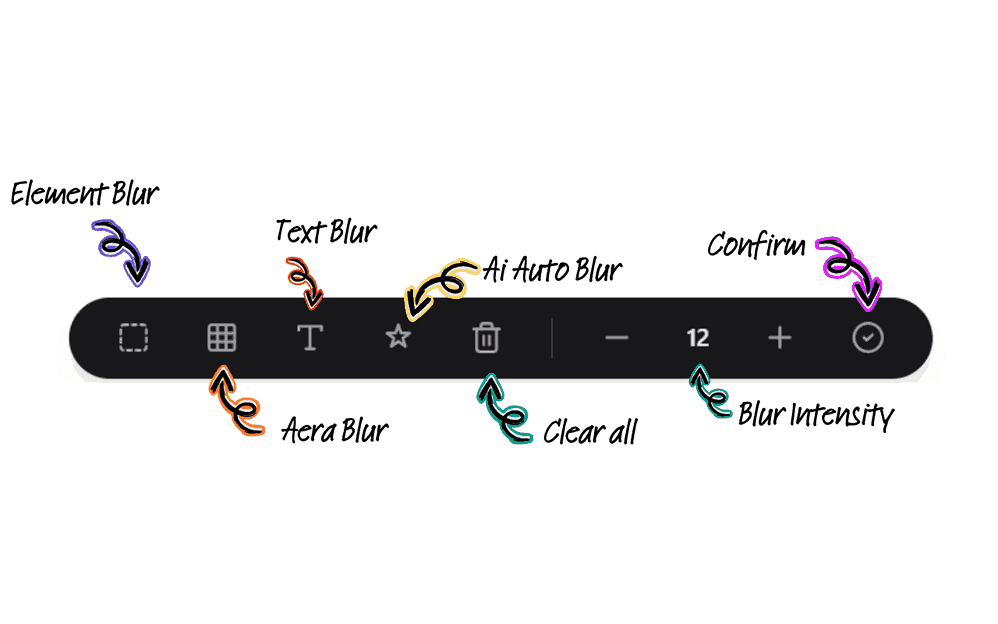
Whether you are crafting a shallow depth-of-field portrait that isolates your subject or redacting confidential data before a live product presentation, knowing how to blur visual media is a fundamental skill. Many creators assume that achieving aesthetic background blur or secure visual redaction requires professional cinema cameras or expensive editing suites. In this comprehensive guide, you will learn the exact techniques to blur images and videos across smartphones, desktop photo editors, web tools, and live video calls.
Key Takeaways
- Mathematical blurring mechanism: Digital blurring reduces image contrast and detail by computing weighted pixel averages using mathematical algorithms such as 2D Gaussian bell curves.
- Primary blur filters: Editors leverage Gaussian blur for uniform softening, motion blur for simulated velocity streaks, and lens blur for optical bokeh highlights.
- Smartphone computational portrait modes: Mobile cameras use multi-lens parallax and AI depth mapping to automatically blur backgrounds while keeping foreground subjects crisp.
- Non-destructive desktop workflows: In Adobe Photoshop and GIMP, applying blur via Smart Filters and layer masks ensures edits can be adjusted later without corrupting original source pixels.
- Selective privacy masking: Obscuring sensitive numbers, faces, and documents requires high-radius blurring or pixelation to eliminate character contours from optical character recognition (OCR) decoders.
- Real-time video & browser protection: Live platforms like Zoom and Teams offer real-time background blurring, while client-side extensions automatically mask passwords and PII during browser screen sharing.
What Is Blurring and How Does It Work Digitally?
Digital blurring is the mathematical process of reducing spatial frequency and high-contrast boundaries across a raster image or video frame. When an image editing program blurs an area, it recalculates the color values of each target pixel based on the weighted average of its surrounding neighborhood.
The most widely implemented algorithm is the Gaussian blur convolution, which uses a standard normal distribution curve to assign heavier mathematical weights to nearby pixels and lighter weights to distant pixels. In web engineering, modern browsers apply this exact principle natively using CSS declarations such as filter: blur(8px). For an architectural deep-dive into how spatial filters process pixel matrices, see our comprehensive guide to blurring photos.
In contrast to Gaussian smoothing, motion blur spreads pixel information along a linear vector to simulate velocity, while lens blur (bokeh) models optical camera aperture diaphragms to generate creamy circular discs from out-of-focus background light sources. Understanding these differences allows creators to choose the exact digital blur tool required for their visual objective.
Why Should You Blur the Background of a Photo or Video?
Background blurring serves two indispensable functions in visual media: compositional focus and confidential data protection.
From a compositional perspective, human visual perception naturally gravitates toward the sharpest, highest-contrast elements within a frame. Blurring busy backgrounds removes clutter, suppresses distracting environmental geometry, and draws immediate viewer attention to the primary subject. This technique is standard in portraiture, commercial product showcases, and instructional video production.
From a cybersecurity and privacy perspective, background blurring shields sensitive data from unauthorized capture. When recording webinars, demos, or casual vlogs, backgrounds frequently reveal identifying house numbers, family photographs, whiteboard notes, browser tabs, or proprietary workplace monitors. For best practices on securing visual workspaces, explore our screen privacy and data protection guide.
When developers redact credentials with a subtle 3px to 5px Gaussian blur, the underlying mathematical gradients frequently retain enough high-contrast letterform shapes for modern optical character recognition (OCR) and machine learning deconvolution models to reconstruct original text. If your objective is compliance with GDPR or HIPAA when publishing screenshots, always apply a high-radius blur (20px+), pixelation quantization, or an opaque vector redaction block.
Need automated real-time screen & browser blurring?
Stop manually editing recorded videos. Experience how AI BlurWeb automatically masks credentials and sensitive inputs in real time.
How Does iPhone & Android Portrait Mode Blur Backgrounds?
Modern smartphones generate background blur through computational photography rather than relying solely on physical lens optics. Devices like the Apple iPhone, Samsung Galaxy, and Google Pixel utilize dual-lens stereoscopic parallax, LiDAR sensors, and neural semantic segmentation to construct a millimeter-precise depth map of every captured scene.
Once the device identifies the subject plane, the image signal processor (ISP) segments background elements into progressive depth layers, applying proportional optical bokeh simulations to objects located furthest from the focal center.
Step-by-Step: Capturing Blurred Backgrounds on Mobile
- 1.Open your smartphone's native Camera app and select Portrait mode (or Cinematic / Live Focus).
- 2.Position yourself 2 to 8 feet from the subject to give the depth sensor optimal focal separation from the background.
- 3.Tap the subject on screen to lock focus and exposure.
- 4.Tap the Depth / Aperture (f-stop) icon to manually adjust blur intensity (e.g., f/2.8 for natural depth vs. f/1.4 for heavy bokeh).
- 5.Capture the photo. You can edit the simulated f-stop anytime in your phone's photo editor after shooting.
For advanced manual editing on smartphones, dedicated applications like Snapseed (with its Lens Blur tool) and PicsArt enable users to paint custom blur masks and adjust transition feathering directly with touch gestures.
How Do You Blur Photos in Photoshop and GIMP?
Desktop photo editors provide professional-grade control over mask boundaries, feathering radii, and non-destructive filter pipelines.
Blurring Photos in Adobe Photoshop
- Open your image and duplicate the background layer (
Ctrl+J/Cmd+J). - Right-click the duplicated layer and select Convert to Smart Object to enable editable Smart Filters.
- Choose Select > Subject to generate an automated AI selection outline around your primary subject.
- Invert the selection (
Select > InverseorCtrl+Shift+I) so that only background pixels are selected. - Navigate to Filter > Blur > Gaussian Blur (or Filter > Blur Gallery > Field Blur).
- Set your blur radius (typically 10px to 30px) and click OK. The Smart Filter mask allows you to brush away blur from accidental subject overlaps with a black brush.
Blurring Photos in GIMP (Free & Open-Source)
- Duplicate the active image layer in the Layers dock.
- Use the Foreground Select Tool or Free Select (Lasso) to trace around your subject.
- Invert the selection via Select > Invert.
- Go to Filters > Blur > Gaussian Blur.
- Adjust the horizontal (X) and vertical (Y) blur radii and click OK.
How Can You Blur Specific Areas (Faces, Text, Passwords)?
Selective area blurring is essential when sanitizing documents or protecting personal identity in public imagery.
- Static Image Redaction: In Photoshop or GIMP, select the Rectangular Marquee or Lasso Tool, draw a tight boundary around the target text, credit card number, or face, and apply a Gaussian blur filter with a minimum radius of 20px. Alternatively, use Filter > Pixelate > Mosaic to permanently quantize the region into discrete solid color blocks.
- Live Web Browsing & Presentations: Manually editing screenshots is too slow during live video calls or software demonstrations. Browser tools like AI BlurWeb automatically recognize password fields, email addresses, and financial numbers on web pages, masking them locally in real time before they appear on your screen share.
Which Online Tools Allow Instant Background Blurring?
If you need fast results without downloading desktop software, web-based editors provide automated browser blurring:
- Canva: Features an automated Auto Focus / Blur effect. Upload your photo, navigate to Edit Photo > Effects > Blur, and adjust blur intensity and focal position sliders to soften surroundings instantly.
- Adobe Express: Enables single-click background blur presets with brush masking options to refine subject boundaries directly inside your web browser.
- Photopea & Pixlr: Free in-browser photo editors that support full layer stacks, marquee selections, and Gaussian blur filters without requiring account registration.
How Can You Blur Video Backgrounds in Zoom, Teams, and Premiere Pro?
Blurring background footage in video production is divided between real-time video conferencing algorithms and post-production video editing suites.
Real-Time Blur in Video Conferencing (Zoom, Teams, Google Meet)
Video conferencing applications process webcam feeds using lightweight computer vision models to distinguish human silhouettes from background rooms:
- Zoom: Open Settings > Background & Effects > Virtual Backgrounds and click Blur.
- Microsoft Teams: Click More Actions (...) > Video Effects and select Blur Background.
- Google Meet: Click Apply Visual Effects on your preview window and select Blur your background.
To ensure secure broadcasts without revealing confidential application windows, review our in-depth tutorial on safe screen sharing best practices.
Post-Production Video Blur (Adobe Premiere Pro & DaVinci Resolve)
When editing recorded video footage, you can track moving objects and blur backgrounds dynamically:
- Adobe Premiere Pro: Apply the Gaussian Blur effect to your video track or an Adjustment Layer. In the Effect Controls panel, use the Ellipse or Pen mask tool to isolate a moving face or license plate, then click the Track Selected Mask play button to automatically follow the subject across the timeline.
- DaVinci Resolve: In the Color Workspace, draw a Power Window around the target element, link it to the Tracker palette, and increase the Blur radius in the Blur/Sharpen tab.
If you produce instructional video content, check out our guide to screen recording on any device.
What Are Gaussian Blur and Motion Blur Effects?
Different visual storytelling contexts call for specialized blur filters:
- Gaussian Blur: A mathematically symmetrical filter that smooths high-frequency pixel variations uniformly across all axes, producing an even, creamy haze that is ideal for portrait backgrounds and skin smoothing.
- Motion Blur: A directional filter that smears pixels along a specific linear angle to simulate physical shutter exposure during high-speed motion, adding energy to sports shots or vehicle tracking clips.
- Lens Blur (Bokeh): An optical simulation filter that calculates circle of confusion (CoC) physics to transform out-of-focus background light sources into soft circular or polygonal bokeh discs.
What Is the Best Blur Strength for a Natural Aesthetic?
When blurring backgrounds, subtle moderation yields the most realistic results. An excessively high blur radius creates unnatural halo outlines around subject hair and shoulders, giving portraits an artificial, cut-out appearance.
To achieve a believable aesthetic, calibrate blur radius to mimic an f/2.8 to f/5.6 optical lens aperture. Always apply a 2px to 5px feather to selection mask boundaries and inspect fine edge transitions at 100% zoom before exporting.
Can You Adjust or Undo Blur After Applying It?
Your ability to modify or reverse blur depends entirely on maintaining a non-destructive editing workflow:
- Use Smart Objects & Filters: In desktop editors, applying blur to Smart Objects enables you to double-click and re-adjust blur radii at any time.
- Preserve Master Project Files: Always maintain your layered PSD or master project files intact rather than overwriting raw camera originals.
- Non-Destructive Mobile Stacks: Apps like Snapseed allow you to reopen edit stacks and re-calibrate lens blur parameters after initial edits.
- Real-Time Software Toggles: In video conferencing apps and extensions like AI BlurWeb, blur settings can be toggled on or off instantly with zero permanent alteration of underlying displays.
Comparison Table: Blurring Methods, Tools, and Use Cases
The following comparison matrix outlines the recommended tool and operational mechanism for each media scenario:
| Platform / Method | Recommended Tools | Optimal Use Case |
|---|---|---|
| Smartphones | iPhone / Android Portrait Mode | Automated computational depth-of-field for portrait photography |
| Mobile Touch Apps | Snapseed (Lens Blur), PicsArt | Manual touch-brush masking for face and text redaction on phones |
| Desktop Editors | Adobe Photoshop, GIMP | Pixel-accurate layer masks, Smart Filters, and multi-radius blurs |
| Online Web Tools | Canva, Adobe Express, Pixlr | Instant in-browser background blur with zero software installation |
| Video Calls | Zoom, Microsoft Teams, Google Meet | Real-time room background obscuration during live meetings |
| Video Post-Production | Premiere Pro, DaVinci Resolve | Keyframed motion tracking for moving faces, license plates, and backgrounds |
| Live Screen Privacy | AI BlurWeb | Client-side automated browser PII, password, and credential masking |
Actionable Next Steps: Integrating Blur into Your Workflow
To incorporate these blurring best practices into your routine:
- Master non-destructive layers: Always convert layers to Smart Objects or apply blur on separate duplicate layers before exporting.
- Calibrate for realism: Avoid extreme blur radii on portrait photography to maintain natural hair and edge contours.
- Audit sensitive document exports: Verify that redacted screenshots are thoroughly unreadable at 100% resolution before public sharing.
- Automate live meeting privacy: Review our guide on blurring sensitive screen areas to prevent live data exposure.
- Review pricing & license plans: Explore our pricing page to secure lifetime access to automated browser blur protection.
- Check common questions: Visit our FAQ section for additional security guidance.
Conclusion
Mastering blur techniques allows you to produce visually striking portraits, create engaging video content, and maintain airtight security over sensitive on-screen information. Whether utilizing computational Portrait mode on your smartphone, executing precision Smart Filters in desktop editors, or deploying real-time automated browser masking during screen shares, blurring is one of the most versatile tools in modern digital media.

Written by Deepak Jain
Founder & Solo Developer at AIBlurWeb
Deepak builds privacy-focused browser utilities and writes about screen privacy, browser security, sensitive data protection, digital image processing, and real-time masking technologies. Reviewed by Jane Smith, Cybersecurity & Privacy Specialist. Read founder story →
Editorial Note: This article was created with editorial oversight and rigorous technical fact-checking by human editors and digital imaging subject matter experts.