Blur Screen: The Ultimate Guide to Screen Privacy and Sensitive Data Protection

You’ve probably already shared your screen on Zoom, Google Meet, Teams, or a recording and noticed just how much information becomes visible. The gap is that one exposed email, API key, password, customer record, or browser tab can reveal information you never intended to share. In this guide, we’ll explain what screen blur is, how to blur part of your screen, how automatic sensitive-data detection works, and which approach makes sense for live calls, recordings, screenshots, and demos.
Key Takeaways
- Screen blur obscures selected content on a computer display so private information becomes difficult or impossible to read.
- Screen blur protects displayed content, while webcam background blur only hides the physical environment behind you.
- Manual area blur provides precise control, while automatic detection can identify common sensitive information without selecting every item yourself.
- Browser-based screen blur tools can protect webpage content before it is shared, recorded, or captured.
- Automatic detection can target information such as emails, passwords, phone numbers, payment data, and API keys.
- Real-time protection can reduce the need to edit sensitive information out of recordings afterward.
- Verification matters because you should always confirm that protected information is unreadable before starting a screen share.
What Is Screen Blur and How Does It Work?
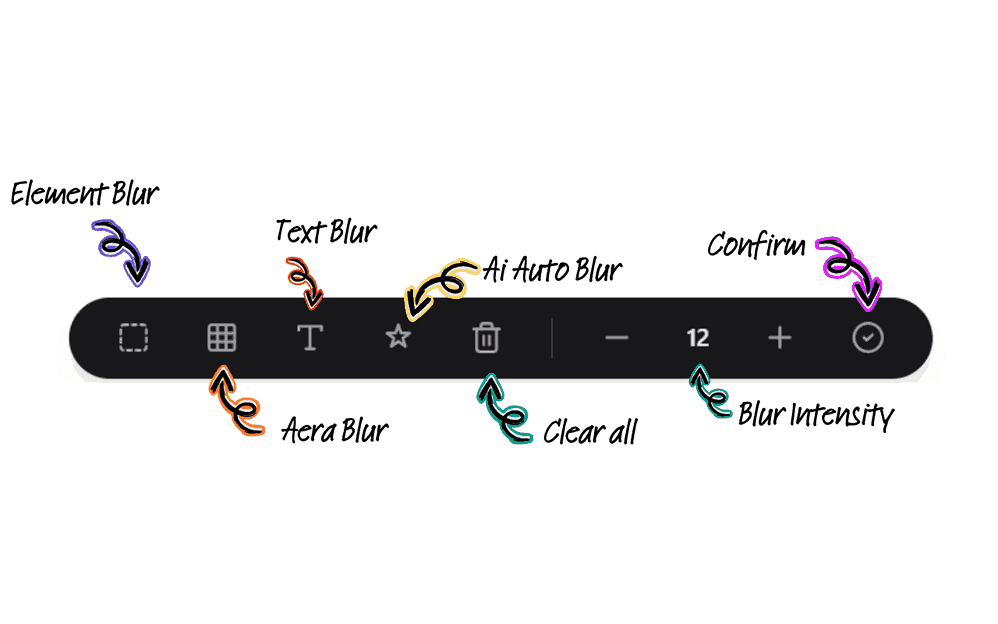
Screen blur is the process of obscuring selected content on a computer display so that sensitive information is difficult or impossible for viewers to read. Screen blur can cover an entire display, a specific rectangular area, an individual webpage element, or information identified automatically.
First, screen blur works by changing how selected content appears to the viewer. For example, a browser page might still show an email address, but the characters could appear as an unreadable blurred region instead of readable text.
Second, screen blur can be applied in several ways depending on what you are trying to protect:
- Area blur: Covers a manually selected region.
- Element blur: Hides a particular webpage element.
- Automatic blur: Detects predefined sensitive patterns.
- Full-screen blur: Obscures most or all visible content.
- Post-production blur: Masks information after a screenshot or recording has already been created.
Moreover, browser-based tools can apply protection directly to webpage content. For example, AI-powered screen blur with AIBlurWeb automatically detects sensitive information such as passwords, emails, and credit-card information, with detection and blurring performed locally in the browser.
Screen blur is most useful when the information you need to protect is visible on the display itself. A developer sharing a dashboard, for example, can hide an API key while leaving the rest of the dashboard visible.
What Can You Blur on a Screen?
Sensitive screen information includes any visible data that you do not want an audience to read or capture. Common examples include:
For example, a software developer might share a production dashboard while an authentication token appears in a visible configuration panel. Blurring the token lets the developer demonstrate the application without exposing the credential.
Why Should You Blur Your Screen Before Sharing It?
You should blur your screen before sharing it because screen sharing can expose whatever sensitive information is visible in the shared area. A privacy mistake can happen quickly when a notification, browser tab, customer record, or credential appears unexpectedly.
First, the risk is not limited to malicious activity. Accidental disclosure can happen during ordinary work. For example, someone demonstrating a CRM may accidentally expose another customer's email address while navigating between records.
Second, the broader cost of data exposure can be significant. IBM reported a $4.4 million global average data-breach cost in its 2025 report — Source: IBM, 2025.
In addition, Verizon's 2026 Data Breach Investigations Report found that the non-intentional human element contributed to 62% of breaches — Source: Verizon, 2026. Screen blur does not replace cybersecurity controls, but it can blur sensitive data during screen sharing and reduce one practical source of accidental visual exposure.
For organizations operating in India, IBM reported an average data-breach cost of INR 220 million in 2025, up 13% from the previous year — Source: IBM India, 2025.
When Should You Blur Your Screen?
You should use screen blur whenever sensitive information could appear in content that another person can see, record, or capture. Common situations include:
For example, a content creator recording a tutorial can blur private account information before opening the application instead of remembering to edit it later.
How Do You Blur Part of Your Screen?
You can blur part of your screen by selecting the sensitive area, applying a blur effect, checking the result, and then starting your screen share or recording. This method is useful when you know exactly which information needs protection.
How to Manually Blur a Screen Area
Manual area blur lets you choose exactly which part of the display should be hidden. A typical workflow looks like this:
Manual blur is especially useful when the information is unique or unpredictable. A private Slack message, handwritten note, internal project name, or unusual identifier may not match an automatic detection pattern.
Why Should You Verify the Blur?
You should verify a blurred region because a privacy tool is only useful if the protected information is actually unreadable. Check the area from the same viewing perspective your audience will have.
For example, zooming into a blurred screenshot may reveal details that were difficult to see at normal size. Before sharing, test the blur at the resolution and viewing conditions your audience will receive.
How Do You Blur Sensitive Information During Screen Sharing?
You can blur sensitive information during screen sharing by protecting the content before the audience receives the shared screen. This is different from editing a recording after the information has already been captured.
First, prepare the webpage before joining the call. Identify credentials, personal information, customer records, or other content that could appear during navigation.
Second, activate your screen-blur workflow before selecting the screen-sharing window. Real-time screen blurring applies privacy protection before sensitive webpage content is exposed through screen sharing, recording, or presentation software (such as using screen privacy for live calls and recordings).
How Does Real-Time Screen Blur Help?
Real-time screen blur protects sensitive content while you are working instead of requiring you to remember every item during post-production. This can be particularly useful when webpages contain changing or dynamically loaded information.
AIBlurWeb describes real-time AI auto-blur for sensitive information and local browser processing as part of its screen-privacy workflow.
How Do You Automatically Blur Emails, Passwords, and API Keys?
Automatic screen blurring detects predefined patterns or sensitive information such as email addresses, phone numbers, passwords, payment data, and API keys and applies a blur without requiring users to manually select every item.
First, an automatic system can look for recognizable patterns. An email address, for example, generally follows a predictable structure, while API keys may follow recognizable token patterns depending on the service.
Second, systems with auto-blur for emails, passwords, and credit card numbers scan webpage content locally in the browser to obscure categories such as credit-card numbers, email addresses, and passwords in real-time.
Automatic Blur vs. Manual Blur
| Feature | Manual Blur | Automatic Blur |
|---|---|---|
| User control | High | Moderate to high |
| Setup speed | Fast for a few areas | Fast for many matching items |
| Best for | Unique content | Repeated sensitive patterns |
| Detection | User-selected | Pattern or AI-based |
| Real-time use | Possible | Particularly useful |
| Risk of missing an item | Depends on user | Depends on detection accuracy |
Manual blur is best when precision matters, while automatic blur is useful when sensitive information appears repeatedly or unpredictably. A practical privacy workflow can use both methods together.
What Is the Difference Between Screen Blur and Background Blur?
Screen blur protects content displayed on your screen, while background blur only obscures the physical environment behind your webcam. These two features solve completely different privacy problems.
First, webcam background blur changes the appearance of your camera feed. Microsoft Teams, for example, provides a background-blur feature designed to conceal what is behind you while keeping you visible.
Second, background blur does not hide a password visible in a browser window that you are sharing. Background blur protects your physical surroundings; screen blur protects digital content.
How Do You Blur Your Screen During Zoom, Google Meet, and Microsoft Teams?
You can blur browser content before sharing it through Zoom, Google Meet, or Microsoft Teams by applying the blur directly to the content you intend to share. Meeting software controls what you share, but a separate browser blur workflow can protect sensitive webpage content.
Zoom Screen Sharing
Zoom screen sharing allows you to choose what screen or content you share with meeting participants. Zoom's documentation explains that participants cannot see your screen unless you choose to share it.
For example, select a browser window containing already-blurred information rather than sharing your entire desktop when possible.
Google Meet Screen Sharing
Google Meet screen sharing should be paired with a protected browser view when the shared webpage contains sensitive information. Before presenting, blur the private content and then select the relevant tab or window.
Microsoft Teams Screen Sharing
Microsoft Teams background blur does not automatically blur sensitive information displayed inside a shared browser or application. Microsoft's documentation describes background blur as a camera feature that conceals the physical environment behind the participant.
When presenting technical demos, make sure to protect API keys during screen sharing before starting your call.
What Is the Best Way to Blur a Browser Screen?
The best way to blur a browser screen depends on whether you need manual precision, automatic detection, or real-time protection. Browser extensions are particularly convenient when your sensitive content lives inside websites.
You can easily install a dedicated screen blur Chrome extension to handle sensitive-field detection directly on your device.
Can You Blur a Screen in Real Time Without Editing the Recording?
Yes, real-time screen blurring can hide selected webpage content before it appears in a screen recording, reducing the need for post-production masking. Learn how to protect sensitive information while recording to simplify your editing workflow.
What Tools Can You Use to Blur Your Screen?
You can blur your screen with browser extensions, screenshot editors, video editors, or manual application features depending on when and where you need protection. You can also try screen blur online to see live element censoring in action.
Browser Extensions
Browser extensions are useful when sensitive information appears inside webpages. They can provide manual element selection, automatic detection, or real-time browser protection.
AIBlurWeb is one example that positions automatic detection, manual blurring, screenshot privacy, and local processing around screen sharing and recording.
Screenshot Editors
Screenshot editors are useful when the sensitive information has already been captured in an image. You can crop, blur, pixelate, or cover private information before publishing the screenshot.
Video Editors
Video editors are useful when you need to hide information from an existing recording. Editors can track or mask a region throughout the video, although this creates an additional post-production step.
What Should You Look for in a Screen Blur Tool?
A good screen-blur tool should balance accuracy, speed, precision, real-time protection, supported environments, and privacy. No single feature matters more than whether the tool reliably protects the information you need to hide.
Consider these factors:
For example, AIBlurWeb states that its detection and blurring happen locally in the browser rather than sending screen data to its servers.
Privacy tools should themselves be evaluated for privacy. Before installing a browser extension, review its permissions, privacy policy, data practices, and reputation.
What Should You Do Next to Protect Your Screen?
The best next step is to build a simple screen-privacy checklist before every important screen share or recording. A consistent workflow is easier to follow than relying on memory during a live presentation.
Use this checklist:
For example, a developer can open the demo page, activate automatic protection, manually blur an unusual private field, verify the result, and only then start recording with AI BlurWeb screen privacy.
Conclusion
Screen blur is a practical way to protect sensitive information displayed on your computer before it reaches an audience. It can help hide emails, passwords, API keys, customer information, payment data, private messages, and other content during screen sharing, screenshots, recordings, and demonstrations.
First, use manual blur when you need precise control. Second, use automatic detection when sensitive information appears frequently or unpredictably. Finally, combine both approaches with basic screen-sharing habits such as closing unnecessary tabs and checking your shared area before going live.
A screen-blur workflow is most effective when sensitive information is hidden before the screen is shared or recorded rather than relying only on post-production editing.
If you regularly share browser-based work, consider testing an AI-powered screen privacy workflow that combines automatic detection with manual controls—try AI BlurWeb today.

Written & Reviewed by Deepak
Founder & Solo Developer at AIBlurWeb
Deepak builds privacy-focused browser tools and writes about screen privacy, browser security, sensitive-data protection, screen sharing, and AI-powered privacy tools. His hands-on work focuses on helping developers, remote teams, creators, support professionals, and businesses reduce accidental exposure of sensitive information.
Disclaimer: This article was initially drafted using AI assistance. However, the content has undergone thorough revisions, editing, and fact-checking by human editors and subject matter experts to ensure accuracy.